ERP-Scale
SAP certified weighing integration



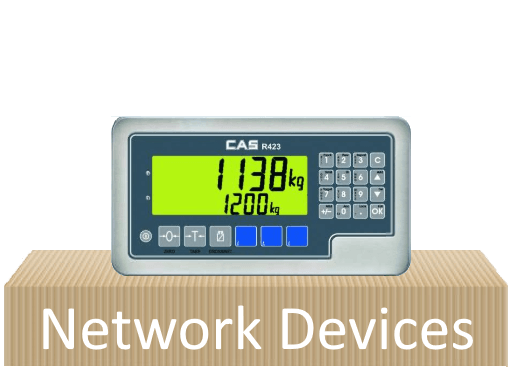
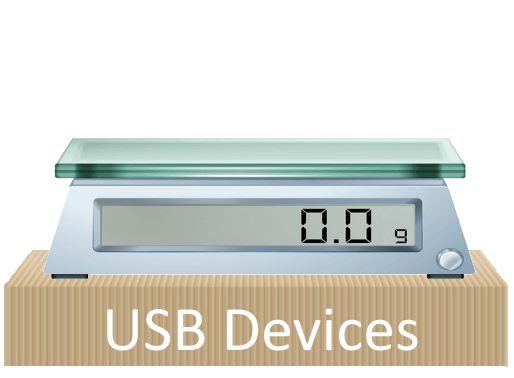
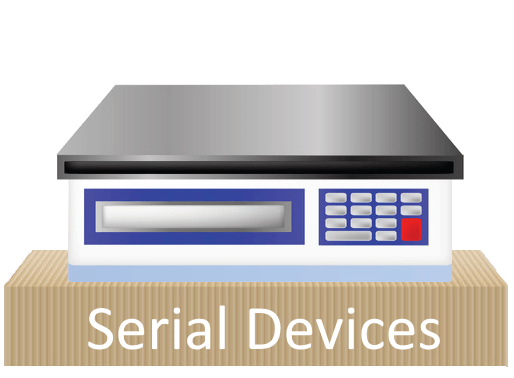

For SAP Manufacturing, ERP-Scale supports interfacing devices using SAP ODA. Ideal for use with XSteps, PI-Sheets and manufacturing cockpits, ERP-Scale replaces SAP’s OPC Connector to provide access to weighing equipment in one easy-to-implement package. SAP ODA data subscriptions are supported by ERP-Scale to trigger functions in SAP when a new weight is received. For example, using an in-line scale, ERP-Scale triggers the goods receipt and label printing within SAP.
ERP-Scale also supports integration using PP-PI-CFB providing weighing functionality for goods movements. Further, ERP-Scale has a built-in HTTP server, allowing MII to access the data directly from the device using the XML Connector.

Using ERP-Scale’s QM-IDI interface, device data can be read directly into SAP QM Results Recording. The integration allows the operator to read characteristic values from ERP-Scale in transaction QE51N. This is not limited only to weighing devices. Other analytical equipment can be connected to ERP-Scale and the analysis results transferred to SAP.

Weighing cartons with the Packing Station Transaction (HUPAST) is quick and easy using ERP-Scale to integrate weighing equipment via the RFC supplied in standard SAP.
In addition, ERP-Scale’s new interface to EWM supports the /SCWM/PACK and /SCWM/QINSP transactions in the same easy-to-implement seamless package.
ERP-Scale is also the go-to scale integration solution for third-party shipping modules such as ShipExec™ from CONTAX.
Great integration with our SAP environment
We have been working with Pocket Programs since 2010. We found the ERP-Scale solution really quick and easy to implement. We handle 15,000 shipments a day globally out of our NY and Amsterdam DC, all managed by SAP. ERP-Scale provides a robust and reliable connection to the weigh scales in our distribution centers. The efficiency that ERP-Scale provides as well as the increase in labor productivity justified our investment after 4 months. As a partner, we found Pocket Programs to be very flexible and responsive to our needs, additional licenses and maintenance is never an issue, and they have been great when we needed licensing keys. We have been a reference for this partner and continue to be so.

Works Perfectly
We recently replaced our scale_for_r3 and Winwedge solution with ERP-Scale. The old solution was highly unreliable and caused frequent business interruptions and many support calls. ERP-Scale provides all the functionality in a single robust package and since installing ERP-Scale 6 months ago we haven’t had a single lost-time incident. Pocket Programs provides excellent support and has great expertise in SAP and different types of weigh-scales. Overall ERP-Scale offers a great value solution and the benefit to our business in having a reliable supported solution outweighs the cost by far.

Phänomenal
Einfach phänomenal sehr kompetenten Support. Sie konnten alle unsere Probleme rasch beheben auch wenn nicht an Ihre Software gelegen hat. Super! Vielen Dank

Very Robust and Reliable
We have installed ERP-Scale in 100+ distribution centers as part of our global SAP implementation. It provides a stable and reliable connection between SAP ERP/EWM and the many types of scales we use worldwide. Support is commendable and is available at short notice in case any help is required.

I cannot overstate the positive impact the ERP-Scale software has had on our wood scaling process which is embedded in SAP. ERP-Scale allowed us to connect scaleheads directly to SAP, enabling our SAP transaction to communicate directly with our scaleheads and eliminating intermediate software that relied on command-initiated scale feeds. Technical support Pocket Programs for us to learn about the software, develop our configurations, and implement them has been outstanding. Very quick response even though we are halfway around the world from each other, extremely helpful information and guidance, and a top-quality and reliable product. We are very appreciative of this software being available and working so reliably.
